GuidesDeep dive4 min read
How afk.ai works: One AI model that retargets any rig
The neural network we trained to take any rigged model and any animations, and return the model performing all of them on its own skeleton.
Input rig
character.fbx
skeleton and skinned mesh, any bone names
Input animations
Any clips
- Walk
- Run
- Jump
- Sword Combo
- Dance
- …
keyframed or motion capture, on any skeleton
afk.ai retargeting modelAI
1
Rig encoder
2
Motion encoder
3
Attention decoder
character.glb
your model, every clip on its own bones
Animation retargeting means playing an animation made for one skeleton on another. It's hard because no two rigs agree: bone counts, names, proportions and rest poses all differ. Copy the rotations across and feet slide, hands miss what they reach for, and arms pass through the body.
afk.ai does it with one neural network we trained for the job. It takes a rigged model and a set of animations, and returns the model performing every animation on its own bones. There's no bone mapping to set up and no naming convention to follow. The model works out which of your bones does what, and how each motion should look on your character's body.
What goes in and what comes out
The model has two inputs and one output:
Nothing about your rig changes. The skeleton, bone names, skin weights and mesh come out exactly as they went in, with the new animations added.
- Input rig
- Your model's skeleton (its joints, hierarchy and rest pose) and its skinned mesh, from a GLB, FBX or VRM file.
- Input animations
- Clips made on any skeleton, whether keyframed or motion capture.
- Output
- Your model with each clip baked as keyframes onto its own bones.
Reading the rig as a graph
The model doesn't read bone names. Bone.017, mixamorig:LeftLeg and calf_l mean nothing to it. Instead, it reads the skeleton as a graph, where each joint is a token described by geometry:
- where it sits relative to its parent in the rest pose, scaled to the character's height
- how deep it is in the hierarchy, and how many children it has
- the part of the mesh it moves, taken from the skin weights
A graph transformer passes information along the bones, so each joint's embedding comes to know its place in the body: the middle of a three-joint chain, below the hips, on the left. That's a knee, whatever it's called. The same goes for rigs that look nothing alike: five spine joints or two, a tail, wings, or no fingers at all.
- offset from parent(-0.02, -0.26, 0.01)
- depth in the tree2
- children1
- mesh it moves128 points
- bone nameBone.017
Inside the model
The model has three parts:
- Rig encoder. It turns both skeletons, the animation's and yours, into joint embeddings.
- Motion encoder. It reads the animation frame by frame: each joint's rotation in a continuous 6D form, plus the root's velocity and which feet are touching the ground. It encodes what the motion is doing rather than its raw rotations.
- Attention decoder. For every frame, each of your joints attends to the animation's joints and picks up the motion it should follow. The decoder then writes a rotation for every one of your joints, plus a root path scaled to your character's stride.
The attention replaces the bone map a retargeting tool would ask you for. It's learned, soft and per frame. Three spine joints can share the motion of two, and a joint with no counterpart, like a tail on a humanoid's animation, gets secondary motion that follows the body.
Cross-attention, one frameAI
| yours ↓ / source → | Hips | Spine | Chest | Neck | Head |
|---|---|---|---|---|---|
| pelvis | 0.92 | 0.06 | · | · | · |
| spine_a | 0.22 | 0.72 | 0.06 | · | · |
| spine_b | 0.02 | 0.48 | 0.48 | 0.02 | · |
| spine_c | · | 0.08 | 0.86 | 0.06 | · |
| neck | · | · | 0.10 | 0.84 | 0.06 |
| head | · | · | · | 0.08 | 0.92 |
| tail_1 | 0.34 | 0.12 | 0.02 | · | · |
| tail_2 | 0.18 | 0.06 | · | · | · |
How we trained it
No dataset shows what a given dance should look like on a given character, so the model learns without one. It trains on a large collection of rigged characters and animations, and checks its own results against itself and against physics:
- Reconstruction: a clip retargeted onto its own rig must come out unchanged.
- Cycle: a clip taken from rig A to rig B and back must match the original.
- Hands and feet: where they reach, relative to the body and scaled to the limbs, must match the source.
- Contacts: a foot planted in the source stays planted, with no sliding.
- No clipping: the character's own skinned mesh is checked each frame, and limbs passing through the body are penalized.
- Natural motion: a critic trained on real motion pushes the results to look like movement, not math.
During training, every character is also seen with its bones stretched and shortened, its joints split and merged, its rest pose switched between a T-pose and an A-pose, and its bones renamed at random. That's why the model generalizes to rigs it has never seen.
Clip on rig A
Same clip on rig B
Back on rig A
↺ must come back as the original
Reconstruction
A clip put on its own rig comes out unchanged.
Cycle
A to B and back to A returns the original.
Hands and feet
Where they reach, scaled to the limbs, matches the source.
Contacts
A planted foot stays planted, with no sliding.
No clipping
Limbs that pass through the mesh are penalized.
Natural motion
A critic trained on real motion flags anything that isn't.
one character, as training sees it
Running it on your model
When you upload a rigged model, its rig is encoded once and cached. Every animation then runs through the decoder in one batch on the GPU, so the whole library is retargeted at once, and a clip added later takes one more pass.
A light clean-up follows: rotations are kept continuous from frame to frame, and feet the model marked as planted are locked in place. The results are baked as keyframes onto your bones and written to one GLB, which plays in Blender, Unity, Unreal Engine or any glTF viewer.
1Encode the rigAI
Once per model, cached.
2Retarget every clipAI
Batched on the GPU, all at once.
3Clean up
Smooth rotations, lock planted feet.
4Bake and export
Keyframes on your bones, in one GLB.
meshes └ Body, Hair, Clothes your vertices, materials and texturesskins[0] your skin weights, unchanged └ Bone.001 … Bone.064 your skeleton, names and allanimations └ Idle one the model came with └ Walk, Run, Jump … every clip, on your bonesQuestions
Do my bones need to follow a naming convention?
No. The model never reads bone names, only the shape of the skeleton and the mesh it moves. A rig named Bone.001 to Bone.064 works the same as a Mixamo one.
What if my rig has extra bones?
Bones the animation doesn't have, such as a tail, ears, a cape or hair, get motion that follows the body. Bones your rig doesn't have are simply left out.
Does it work on animals and creatures?
Yes. A skeleton is a graph to the model, whatever it's shaped like. The same model retargets humanoids, four-legged animals, birds and creatures, as long as the animation was made for a similar body.
Why not just copy the rotations?
Because rotations only mean the same thing on skeletons with the same rest pose and proportions. On a character with longer legs or an A-pose, copied rotations make feet slide, hands miss and arms clip through the body. The model retargets what the motion does, not the numbers it was stored as.
Will my rig be changed?
No. Your skeleton, bone names, skin weights and mesh come out exactly as they went in. The only thing added is the animations.
Rig and animate your model
An AI rigs it in your browser, then hundreds of animations play on it. Download one GLB for any engine.
More guides
How-to
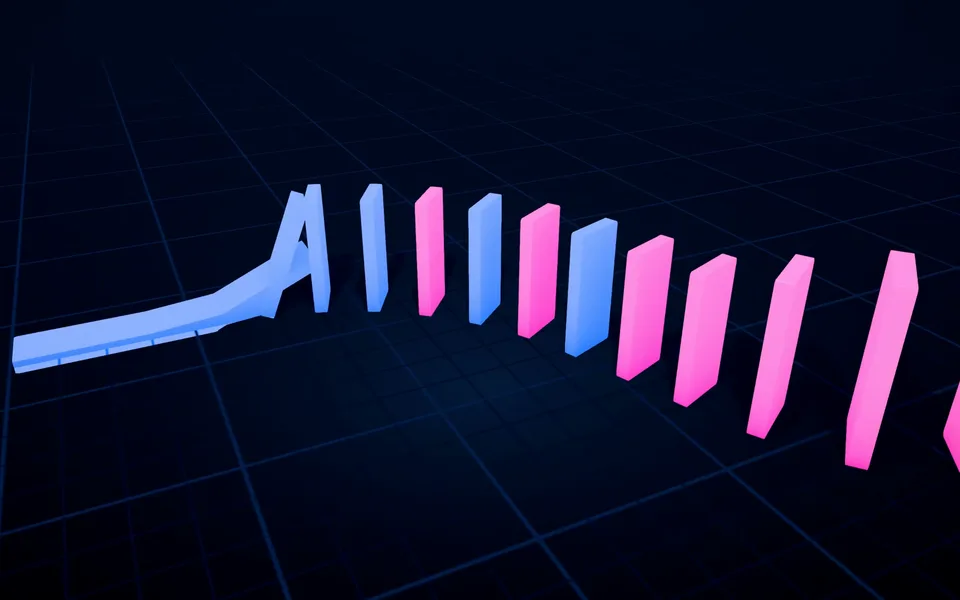
Make a 3D animation on your phone from scratch: a chain reaction built from shapes, step by step in AFK AI for Android
A chain reaction built from plain shapes in AFK AI's 3D editor on an Android phone, with materials, keyframes, physics, lights, a keyed camera and 3D text. Every step, every button.
How-to
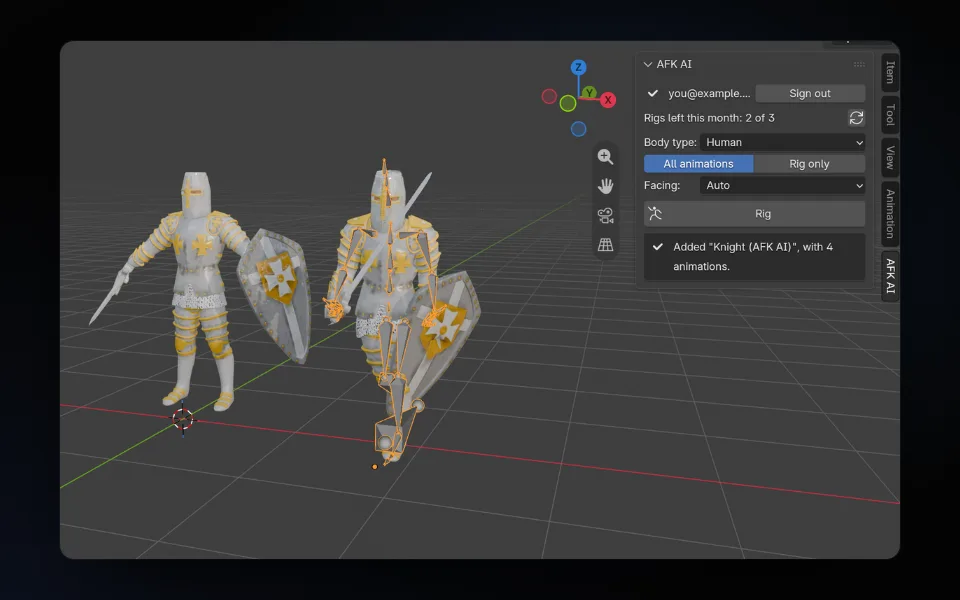
Auto-rig a character in Blender: the free AFK AI add-on
Select your model, click Rig, and about a minute later a rigged copy with its animations stands next to it, in Blender 4.2 and newer.
How-to
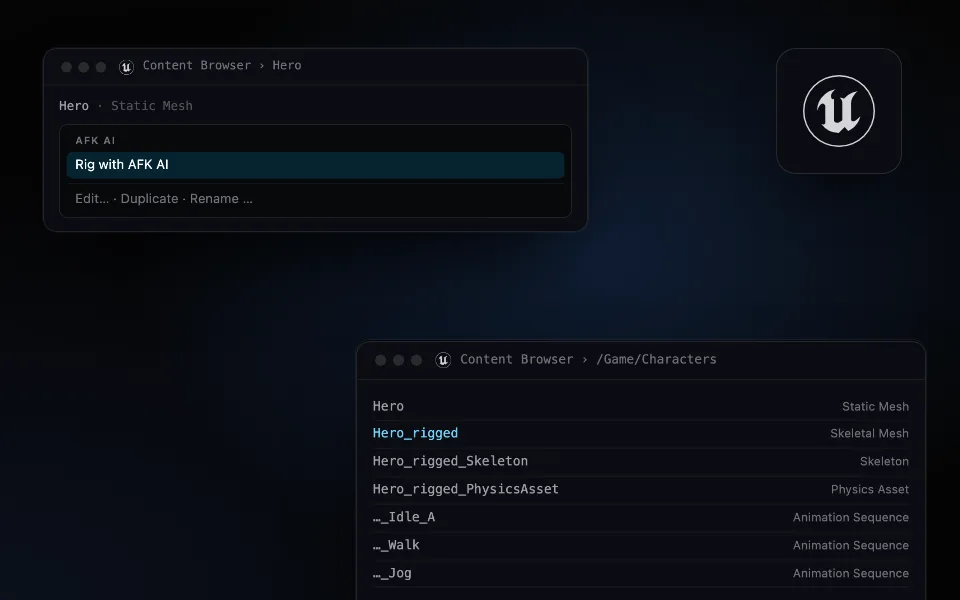
Auto-rig a character in Unreal Engine 5: from a static mesh to an animated skeletal mesh
Right-click a mesh, choose Rig with AFK AI, and a minute later a skeletal mesh with its skeleton, physics asset and animations is in the same folder.