GuidesHow-to8 min read
Auto-rig a character in Unreal Engine 5: From a static mesh to an animated skeletal mesh
Right-click a mesh, choose Rig with AFK AI, and a minute later a skeletal mesh with its skeleton, physics asset and animations is in the same folder.
 Content Browser › Hero
Hero · Static Mesh
AFK AI
Rig with AFK AI
Edit… · Duplicate · Rename …
Content Browser › /Game/Characters- HeroStatic Mesh
- Hero_riggedSkeletal Mesh
- Hero_rigged_SkeletonSkeleton
- Hero_rigged_PhysicsAssetPhysics Asset
- …_Idle_AAnimation Sequence
- …_WalkAnimation Sequence
- …_JogAnimation Sequence
- …
Unreal Engine can animate a character beautifully, but it won't rig one for you. A static mesh from a sculpting app or a marketplace pack has no skeleton and no skin weights, so the usual route is a detour: export it, rig it in Blender or Mixamo, import it back as a skeletal mesh, then find animations that fit.
The AFK AI plugin skips the detour. Right-click the mesh in the Content Browser and choose Rig with AFK AI. About a minute later, a skeletal mesh called Hero_rigged sits in the same folder with its skeleton, its physics asset and its animations, ready for an Animation Blueprint. There's no C++ to compile, so it works in Blueprint-only projects too.
What you need
- Unreal Engine
- 5.1 or newer, on Windows, Mac or Linux. Blueprint-only projects are fine.
- Your mesh
- A static or skeletal mesh imported from an
.fbx,.glbor.gltffile, up to 50 MB. AFK AI gets that original file. - An afk.ai account
- Free, with Google. Each rig uses one of your account's rigs for the month, the same as on afk.ai/rig.
- Internet
- The rigging runs on afk.ai's servers.
Install the plugin
- Download the plugin from the Unreal Engine plugin page and unzip it. You get a folder called
AFKAI. - Put it in your project's
Pluginsfolder, next to the.uprojectfile:MyGame/Plugins/AFKAI/AFKAI.uplugin. Make thePluginsfolder if there isn't one. - Open the project, or restart it. The plugin turns on two plugins that come with Unreal, Python Editor Script Plugin and Editor Scripting Utilities. If Unreal asks to restart, say yes.
An AFK AI menu appears in the editor's menu bar. To have it in every project instead, put the folder in Engine/Plugins/Marketplace/AFKAI in your Unreal install, then turn it on per project in Edit > Plugins.
Sign in and rig
- Choose AFK AI > Sign in.... Your browser opens afk.ai; sign in with Google, then go back to Unreal. The AFK AI menu now shows your email and how many rigs you have left this month.
- In the Content Browser, right-click the mesh and choose Rig with AFK AI. (Or select it and choose AFK AI > Rig the selected mesh....)
- A small window asks for the Body type (Human, or the animal or creature it is), Animations (All animations, or Rig only for just the skeleton) and Facing (leave it on Auto). Its title says it uses one of your rigs. Click OK.
- Keep working. The AFK AI menu shows the progress, and so does the Output Log, on lines starting with "AFK AI".
If the browser can't get back to Unreal (a firewall, or Unreal on another computer), the afk.ai page shows a sign-in code. Choose AFK AI > I have a sign-in code..., paste it and click OK.
What you get
- Skeletal Mesh:
Hero_rigged, in the same folder as the original, selected for you. The original mesh isn't touched. - Skeleton: made for the body type. A human gets 66 bones with three joints in every finger, named after Unreal's own mannequin bones: pelvis, spine_01, clavicle_l, upperarm_l, thigh_l and so on.
- Physics Asset: made on import, for ragdolls and collision.
- Animations: one Animation Sequence per animation. For a humanoid, up to 593: idles, walks, jogs, sprints, jumps, dodges, sword, shield, bow and pistol moves, dances, hits and deaths. A free account gets the free ones, and a plan adds the rest.
- The FBX:
Hero_rigged.fbx, saved next to the original source file, or in your project'sSaved/AFK AIfolder if that one can't be written to. Rig again and you getHero_rigged_2: nothing is overwritten.
Like any import, the new assets aren't saved to disk until you save them: File > Save All.
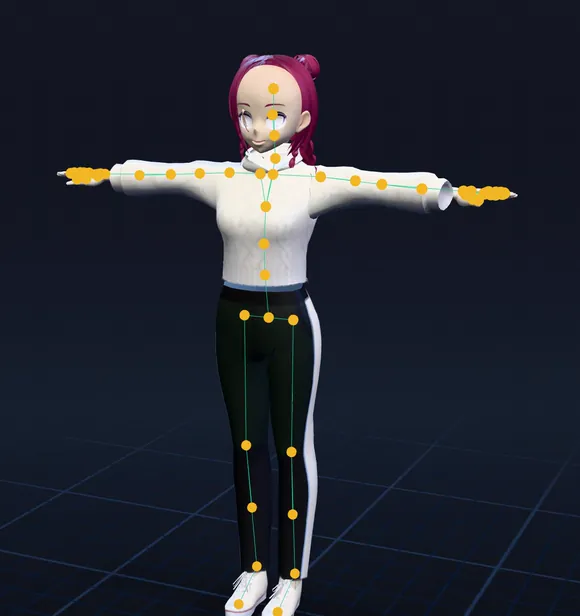
root └ pelvis └ spine_01 └ spine_02 └ spine_03 └ neck_01 └ head └ clavicle_l └ upperarm_l └ lowerarm_l └ hand_l └ thumb_01_l thumb_02_l thumb_03_l └ index_01_l index_02_l index_03_l └ middle_01_l middle_02_l middle_03_l └ ring_01_l ring_02_l ring_03_l └ pinky_01_l pinky_02_l pinky_03_l └ clavicle_r ... (the same on the right) └ thigh_l └ calf_l └ foot_l └ ball_l └ thigh_r ... (the same on the right)See it move, with no code
Drag Hero_rigged into the level. In its Details panel, under Animation, set Animation Mode to Use Animation Asset, pick an animation in Anim to Play (Walk, say) and keep Looping on. Press Play, or just watch it in the viewport.
To check every animation quickly, double-click any of the Animation Sequences: the animation editor opens and plays it on the character.
An Animation Blueprint for a player character
The classic setup: idle when still, walk, then jog as the character speeds up.
- Right-click
Hero_riggedand choose Create > Anim Blueprint. Name itABP_Hero. - In its Event Graph, add a float variable called
Speed. From Event Blueprint Update Animation, call Try Get Pawn Owner, check it with Is Valid, then Get Velocity, then Vector Length XY, and setSpeedto that. - In the AnimGraph, right-click and choose Add New State Machine, call it
Locomotion, and connect it to Output Pose. - Inside it, make three states, Idle, Walk and Jog, and drag the Idle_A, Walk and Jog animations from the Asset Browser into each, connected to its Output Animation Pose.
- Draw transitions both ways between them, with rules on
Speedin centimeters a second: Idle to Walk when Speed > 10, Walk to Jog when Speed > 300, and back the other way when it drops below. - In your Character Blueprint, select the Mesh component, set Skeletal Mesh Asset to
Hero_riggedand Anim Class toABP_Hero. Move it down to the bottom of the capsule and turn it to face the blue arrow, the way the template's mannequin is.
Rather start from C++? The same idea, at its smallest: play one looping animation when the game starts.
// HeroCharacter.h
UPROPERTY(EditAnywhere, Category = "Animation")
TObjectPtr<UAnimSequence> IdleAnimation;

// HeroCharacter.cpp
#include "Animation/AnimSequence.h"

void AHeroCharacter::BeginPlay()
{
    Super::BeginPlay();
    if (IdleAnimation)
    {
        GetMesh()->PlayAnimation(IdleAnimation, /*bLooping=*/ true);
    }
}Root motion, with a little Python
Some of the animations move the character forward on their own: their names end in _RM, like Roll_RM, Dodge_left_RM or Sword_Dash_RM. The rest play in place. Unreal needs root motion turned on per animation, and the plugin has already turned on Unreal's Python, so a few lines do every one at once. Paste this into the Output Log's command line, switched from Cmd to Python:
import unreal

folder = "/Game/Characters"  # the folder Hero_rigged is in
for path in unreal.EditorAssetLibrary.list_assets(folder, recursive=False):
    anim = unreal.EditorAssetLibrary.load_asset(path)
    if isinstance(anim, unreal.AnimSequence) and anim.get_name().endswith("_RM"):
        anim.set_editor_property("enable_root_motion", True)
        unreal.EditorAssetLibrary.save_loaded_asset(anim)
        unreal.log("Root motion on: " + anim.get_name())
Then, in ABP_Hero's Class Defaults, set Root Motion Mode to Root Motion from Everything if you play them in the state machine, or play them as montages.
Retarget to and from the UE5 mannequin
The skeleton's bones are named after the mannequin's, so Unreal's retargeter matches them with little or no help. That works both ways: the Third Person template's animations on your character, or afk.ai's animations on Manny and Quinn.
In Unreal 5.4 and newer:
- Right-click an animation, for example one of the template's, and choose Retarget Animations (Retarget Animation Assets in the newest versions).
- Set the Target Preview Mesh to
Hero_rigged. The source is the mesh the animation came with. - Leave Auto Generate Retargeter on: Unreal makes the IK Rigs and the IK Retargeter itself.
- Tick the animations you want, click Export Animations, pick a folder and click Export.
Swap the source and the target to put Hero_rigged's animations on the mannequin. In 5.1 to 5.3, make an IK Rig for each skeleton and an IK Retargeter between them, then use the retargeter's Export Selected Animations. Either way, play a few results through before you rely on them, especially the hands.
Creatures and props
The same right-click rigs a dragon, a horse, a dinosaur, a spider or a shark: pick its body type in the options window. Each gets a skeleton made for its body and animations made for that skeleton, like flapping, galloping, roaring or swimming, so an open-world game's wildlife doesn't need a rigger. Props get the Object type: bounces, spins, wobbles and squashes for pickups and doors. The animal guide lists every body type and its animations.
- Dragon
- Four-legged
- Hoofed
- Dinosaur
- Spider
- Fish
What counts as a rig
Every rig that reaches AFK AI uses one of this month's rigs, the same as on afk.ai/rig and in the other AFK AI plugins. Stop waiting only stops Unreal waiting: the rig carries on and still counts. A rig that fails isn't counted, and the message says why. The AFK AI menu shows how many rigs are left; when there are none, See plans opens afk.ai's plans.
When something goes wrong
- No AFK AI menu
- In Edit > Plugins, check that AFK AI and Python Editor Script Plugin are on, then restart. The Output Log says "AFK AI couldn't start" with the reason if something else is wrong.
- "has no source file recorded"
- Or "was imported from a .obj file": AFK AI needs the original
.fbx,.glbor.gltf. Export the model as one of those, import it, and rig that. - "Couldn't find Hero's source file"
- The file moved after it was imported. Right-click the mesh, choose Reimport With New File, pick the file where it is now, and rig again.
- "Unreal didn't import it as a skeletal mesh"
- The rig worked, and the FBX is saved where the message says. Drag it into the Content Browser and import it as a Skeletal Mesh with its animations. This can happen with the newer importer in Unreal 5.5 and later.
- "Couldn't make a secure connection to AFK AI"
- A proxy, antivirus or company firewall is in the way. Try another network.
- The rig failed
- Read the message. Usually another body type, or the model standing upright and facing forward, fixes it.
Questions
Can Unreal Engine 5 auto-rig a character by itself?
Not a static mesh. Unreal can retarget animations between skeletons that already exist, and it has tools to build and edit skeletons by hand, but nothing that rigs a mesh for you. The AFK AI plugin does that part: it turns the static mesh into a skeletal mesh with skin weights and animations, and Unreal takes it from there.
Do I need C++ or Visual Studio?
No. The plugin is Python that Unreal runs itself, with nothing to compile, so it works in Blueprint-only projects. The C++ above is only for projects that already use it.
Which Unreal Engine versions does it work in?
Unreal Engine 5.1 and newer, on Windows, Mac and Linux.
Can I rig a model I imported from an .obj?
Not directly: the plugin sends the mesh's original source file, and it takes .fbx, .glb or .gltf. Export the model to one of those from your 3D app, import that, and rig it.
Will it work with the UE5 mannequin's animations?
Yes. The bones are named after the mannequin's, so the retargeter maps them with little or no setup, in both directions. See "Retarget to and from the UE5 mannequin" above.
Can I use the rigged character in a game I sell?
Yes. The skeletons and animations are CC0, and your model stays yours.
Where's the rigged file, if I want it in another app?
Hero_rigged.fbx is saved next to the original source file, or in your project's Saved/AFK AI folder. It opens in Blender, Maya and any app that reads FBX, animations included.
Is there a plugin for Unity or Blender too?
Yes. See the guides for Unity and Blender, and the overview of every AFK AI plugin for all nine apps.
Rig and animate your model
An AI rigs it in your browser, then hundreds of animations play on it. Download one GLB for any engine.
More guides
How-to
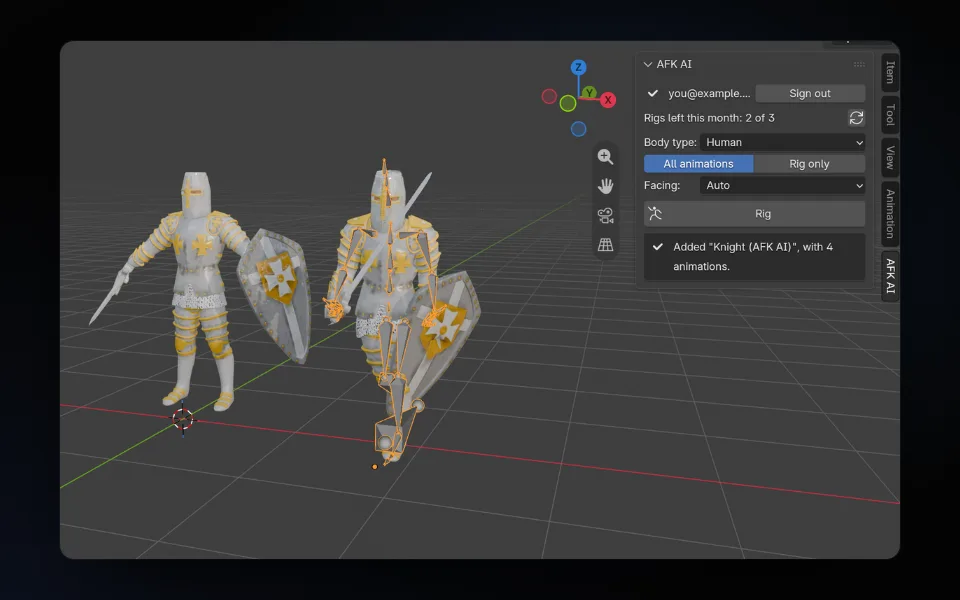
Auto-rig a character in Blender: the free AFK AI add-on
Select your model, click Rig, and about a minute later a rigged copy with its animations stands next to it, in Blender 4.2 and newer.
How-to
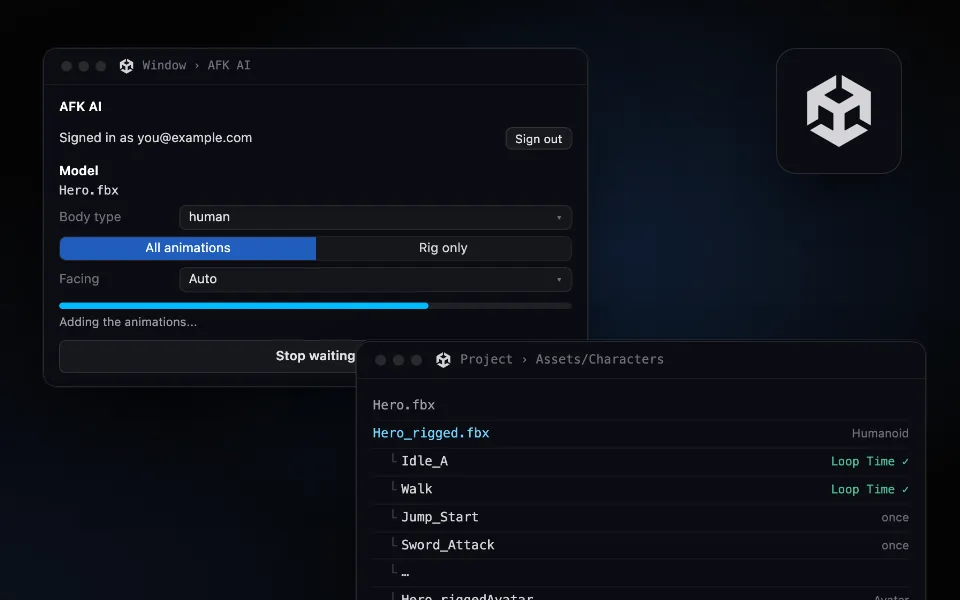
Auto-rig any 3D model inside Unity: Humanoid-ready, with its animation clips
Pick a model in the Project window and click Rig. A minute later a rigged FBX sits next to it, set up as Humanoid, with every animation as a clip.
Comparison
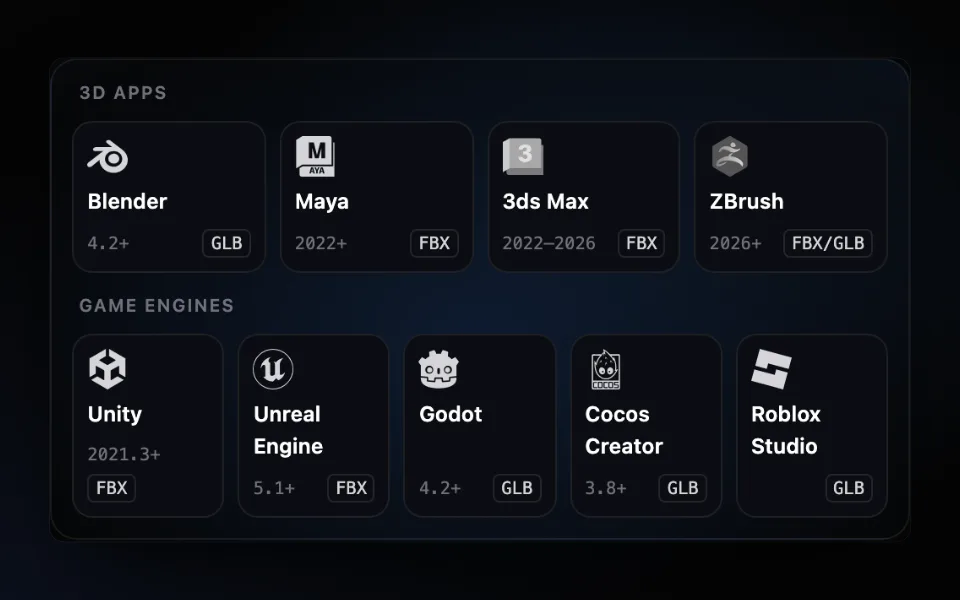
Auto-rig plugins for nine 3D apps and game engines: Blender, Maya, Unity, Unreal and more
One AFK AI plugin for each of nine apps. Select a model, click Rig, and about a minute later it's back in your scene or project, rigged and animated.