GuidesHow-to8 min read
Auto-rig any 3D model inside Unity: Humanoid-ready, with its animation clips
Pick a model in the Project window and click Rig. A minute later a rigged FBX sits next to it, set up as Humanoid, with every animation as a clip.
 Window › AFK AI
AFK AI
Signed in as you@example.comSign out
Model
Hero.fbx
Body typehuman
All animationsRig only
FacingAuto
Adding the animations...
Project › Assets/Characters- Hero.fbx
- Hero_rigged.fbxHumanoid
- └Idle_ALoop Time ✓
- └WalkLoop Time ✓
- └Jump_Startonce
- └Sword_Attackonce
- └…
- └Hero_riggedAvatarAvatar
The usual way to get a character moving in Unity goes through Mixamo. You export an FBX, upload it, place markers on the chin, wrists, elbows and knees, download each animation one by one, then set every file to Humanoid and tick Loop Time on each clip. And it only works for humanoids.
The AFK AI package does it from a window inside the Unity editor. Pick the model in your Project window and click Rig. About a minute later Hero_rigged.fbx sits next to Hero.fbx, already set up as Humanoid, with each animation as a clip and the walks and idles set to loop.
Mixamo or AFK AI in Unity
Mixamo is free and has a big library of humanoid animations. AFK AI saves the trips back and forth, rigs animals and props too, and brings up to 593 animations for a humanoid in one file. A free account gets the free ones, and a plan adds the rest.
| Mixamo | AFK AI in Unity | |
|---|---|---|
| Where | A website: upload, rig, download | A window in the Unity editor |
| What you do | Place markers on the chin, wrists, elbows, knees and groin | Pick a body type, click Rig |
| Bodies | Humanoids only | Humanoids and 14 other body types |
| Animations | Downloaded one at a time | Every animation for the body type, in one FBX |
| Unity setup | By hand: Humanoid, then Loop Time on each clip | Done: Humanoid, one clip per animation, loops on |
| Sign-in | An Adobe account | An afk.ai account, with Google |
Install the package
- Download the package from the Unity plugin page: one
.tgzfile. Keep it somewhere outside your project that it can stay, since Unity reads the package from that file. - In Unity, open Window > Package Manager, click + at the top left and choose Add package from tarball....
- Pick the
.tgzfile you downloaded. Don't unzip it. - Open Window > AFK AI. Dock the window wherever you like.
It works in Unity 2021.3 and newer, Unity 6 included, with the Built-in, URP and HDRP pipelines alike: the plugin only touches the model import. All of its code is editor-only, so nothing of it ends up in your game.
Sign in
- In the AFK AI window, click Sign in. Your browser opens afk.ai's sign-in page; sign in with Google.
- The browser says "You're signed in". Close the tab and go back to Unity: the window shows your email and how many rigs you have left this month.
If the browser can't get back to Unity (some security software blocks it), afk.ai shows a sign-in code instead. Open I have a sign-in code in the AFK AI window, paste it, and click Use code.
Your sign-in is kept in Unity's own settings for your user on this computer, never in the project, so it isn't shared when you share or commit the project.
Rig a model
- In the Project window, select the model: an
.fbx,.glbor.gltffile up to 50 MB. A model you've placed in the scene works too: the plugin sends the file it came from. Unity only shows.glbfiles as models with a glTF importer installed, but the plugin sends them either way. - In the AFK AI window, set the Body type: human for people and anything on two legs, or the animal or creature it is.
- Leave All animations on, or pick Rig only for just the skeleton. Leave Facing on Auto.
- Click Rig. The window shows the progress: uploading, waiting, rigging, adding the animations, downloading. You can keep working, and closing the window doesn't stop it.
When it's done, Hero_rigged.fbx is saved next to Hero.fbx, selected and highlighted in the Project window. The original file isn't touched.
What Unity gets
- Humanoid: a human comes in as a Humanoid rig with its own Avatar (
Hero_riggedAvatar), so it shares animations with every other Humanoid character, both ways. Unity maps the bones to its Humanoid slots by itself, fingers included. - Generic: every other body type, from a fox to a dragon, comes in as a Generic rig.
- Clips: each animation is its own clip, named as it is on afk.ai: Idle_A, Walk, Jog, Sprint, Jump_Start, Sword_Attack and so on.
- Loops: clips whose names say they repeat (idle, walk, run, fly, swim and the like) have Loop Time on. One-offs like Jump_Start, Sword_Attack or Death_A play once.
- Root motion: names ending in _RM (Roll_RM, Dodge_left_RM) move the character forward on their own; the rest play in place.
If Unity can't match a skeleton to its Humanoid bones, the plugin sets the model up as Generic instead and says why. The animations still play; they just can't be shared with other Humanoid characters.
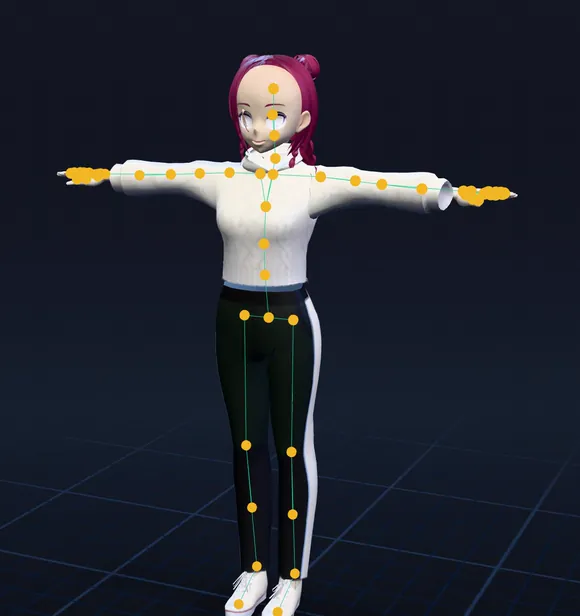
root └ pelvis └ spine_01 └ spine_02 └ spine_03 └ neck_01 └ head └ clavicle_l └ upperarm_l └ lowerarm_l └ hand_l └ thumb_01_l thumb_02_l thumb_03_l └ index_01_l index_02_l index_03_l └ middle_01_l middle_02_l middle_03_l └ ring_01_l ring_02_l ring_03_l └ pinky_01_l pinky_02_l pinky_03_l └ clavicle_r ... (the same on the right) └ thigh_l └ calf_l └ foot_l └ ball_l └ thigh_r ... (the same on the right)Set up an Animator
A blend tree that goes from idle to walk to jog to sprint as the character speeds up, and a sword attack on a button:
- Drag
Hero_rigged.fbxinto the scene. It already has an Animator with its Avatar. Add a Character Controller to it, and turn off Apply Root Motion on the Animator (the script moves it). - In the Project window, choose Create > Animator Controller (in Unity 6, Create > Animation > Animator Controller), name it
Hero, and drag it onto the Animator's Controller field. - Open it (Window > Animation > Animator). In Parameters, add a Float called
Speedand a Trigger calledAttack. - Right-click the graph and choose Create State > From New Blend Tree. Double-click it, set its parameter to
Speed, and add four motions: Idle_A, Walk, Jog and Sprint fromHero_rigged.fbx(click its arrow in the Project window to see the clips). Turn off Automate Thresholds and set them to the speeds your character moves at, for example 0, 1.5, 3.5 and 6. - Back in the Base Layer, drag in the Sword_Attack clip. Make a transition from the blend tree to it with the condition
Attackand Has Exit Time off, so it starts at once, and one back to the blend tree with Has Exit Time on. - Add this script to the character:
using UnityEngine;

// Moves the character and tells its Animator how fast it's going.
[RequireComponent(typeof(Animator), typeof(CharacterController))]
public class HeroAnimation : MonoBehaviour
{
    static readonly int Speed = Animator.StringToHash("Speed");
    static readonly int Attack = Animator.StringToHash("Attack");

    [SerializeField] float runSpeed = 6f;
    Animator animator;
    CharacterController controller;

    void Awake()
    {
        animator = GetComponent<Animator>();
        controller = GetComponent<CharacterController>();
    }

    void Update()
    {
        // The Input Manager's axes. With only the Input System package, read your Move action here instead.
        var input = new Vector3(Input.GetAxis("Horizontal"), 0f, Input.GetAxis("Vertical"));
        var move = Vector3.ClampMagnitude(input, 1f) * runSpeed;
        controller.SimpleMove(move);
        if (move.sqrMagnitude > 0.01f) transform.rotation = Quaternion.LookRotation(move);

        animator.SetFloat(Speed, move.magnitude, 0.1f, Time.deltaTime); // eased, so the blend doesn't snap
        if (Input.GetButtonDown("Fire1")) animator.SetTrigger(Attack);
    }
}
Press Play: the character idles, walks, jogs and sprints with the stick or the arrow keys, and swings its sword on a click.
Share animations with other characters
Because a rigged human is Humanoid, Unity retargets for you. Drop any Humanoid clip onto it, from the Asset Store or your own library, and it plays. The other way round, its clips play on any Humanoid character you already have: drag Hero_rigged.fbx's Sprint clip into another character's Animator Controller and it runs.
Animals and creatures are Generic, so their clips play on their own skeleton. Every model AFK AI rigs as the same body type gets the same bone and animation names, though, so one fox's Animator Controller drives any other fox you rig.
Animals, creatures and props
Pick the body type in the window before you click Rig: fox for dogs, cats and wolves, horse for anything hoofed, bird, dragon, kaiju for dinosaurs, spider, insect, snake, fish, kangaroo, frog, turtle, ghost, or object for props that bounce, spin and wobble. Each gets a skeleton made for its body and animations made for that skeleton, and comes in as a Generic rig with the same clips and loops set up. The animal guide lists what each one comes with.
- Dragon
- Four-legged
- Hoofed
- Dinosaur
- Spider
- Fish
What counts as a rig
Each Rig click that AFK AI accepts uses one of this month's rigs, the same as rigging on afk.ai/rig or in any other AFK AI plugin. A rig that fails isn't counted. Stop waiting stops the wait in Unity, but the rig carries on and still counts. If the connection drops, Try again picks up the same rig, and it's never counted twice. When you run out, the window shows See plans, which opens afk.ai's plans.
When something goes wrong
- The browser can't reach the page after signing in
- Use I have a sign-in code.
- Couldn't reach AFK AI
- Check your connection, then click Try again. It picks up the same rig.
- The model is too big
- AFK AI takes models up to 50 MB. Export a lighter one, with fewer polygons or smaller textures.
- "keeps its data in separate files"
- A
.gltfwith its.binbeside it. Export a.glbinstead. - A clip loops when it shouldn't
- Select
Hero_rigged.fbx, open the Animation tab in the Inspector, pick the clip, change Loop Time, and click Apply. - Nothing happens on Rig
- Select a
.fbx,.glbor.gltfin the Project window first. The window says what's missing.
Questions
Do I still need Mixamo?
No. The plugin rigs the model and brings its animations in one step, set up as Humanoid. You can still use Mixamo's animations on it: download them for any Humanoid character, set them to Humanoid, and they play on yours.
Does the AFK AI package go into my game build?
No. All of its code is in an editor-only assembly. What stays in your project is the rigged FBX, an ordinary model asset.
Does it work in Unity 6?
Yes. It works in Unity 2021.3 and every version since, Unity 6 included.
Can I rig a .glb or .gltf model in Unity?
Yes. The plugin sends the file as it is, even when Unity has no glTF importer to show it as a model. What comes back is an FBX, which Unity imports without anything extra. A .gltf has to have everything embedded; otherwise export a .glb.
Will the rig work for a VRChat avatar?
Yes. A rigged human is Humanoid, with every finger, which is what VRChat needs. The VRChat guide covers the rest of the setup.
What if the character faces the wrong way?
Rig it again with Facing set to the angle it's turned (90°, 180° or 270°). Auto works it out for most models.
Can I rig models from a script, for a whole folder?
The plugin rigs one model at a time. For batches and build pipelines, use the rigging API, from the command line or your own code.
Is there a plugin for Unreal, Godot or Blender too?
Yes: Unreal Engine, Godot and Blender have guides of their own, and the overview of every AFK AI plugin covers all nine apps.
Rig and animate your model
An AI rigs it in your browser, then hundreds of animations play on it. Download one GLB for any engine.
More guides
How-to
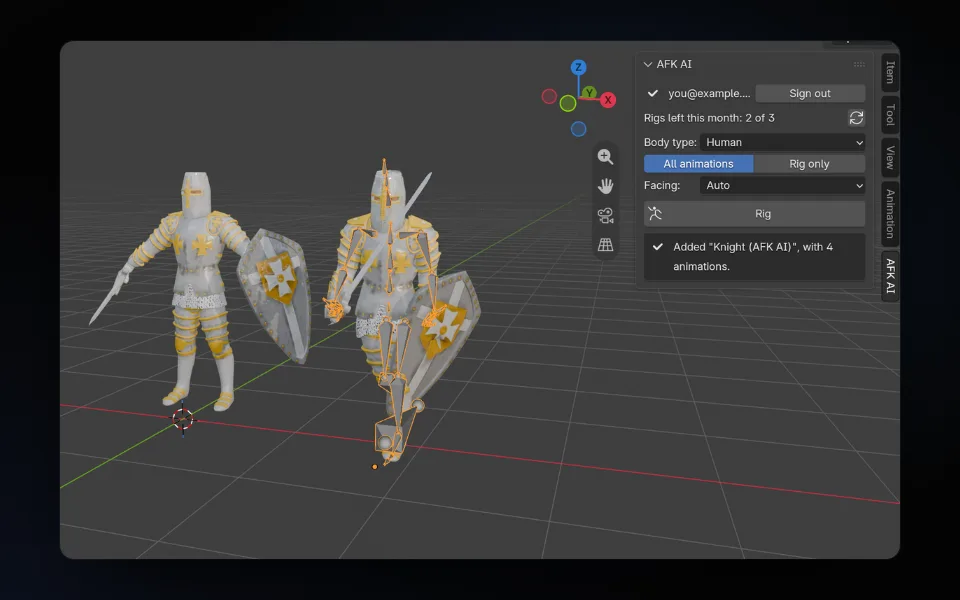
Auto-rig a character in Blender: the free AFK AI add-on
Select your model, click Rig, and about a minute later a rigged copy with its animations stands next to it, in Blender 4.2 and newer.
How-to
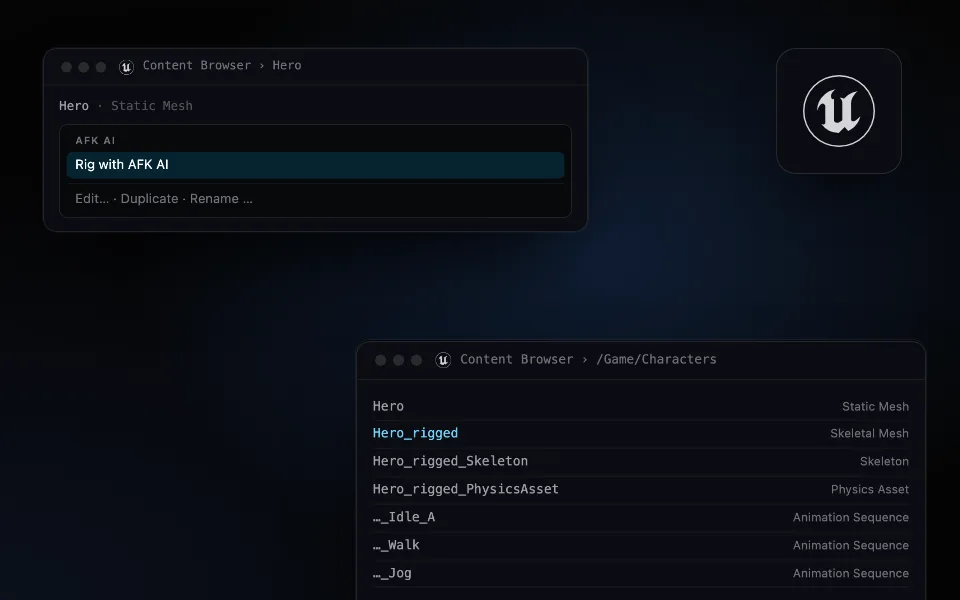
Auto-rig a character in Unreal Engine 5: from a static mesh to an animated skeletal mesh
Right-click a mesh, choose Rig with AFK AI, and a minute later a skeletal mesh with its skeleton, physics asset and animations is in the same folder.
Comparison
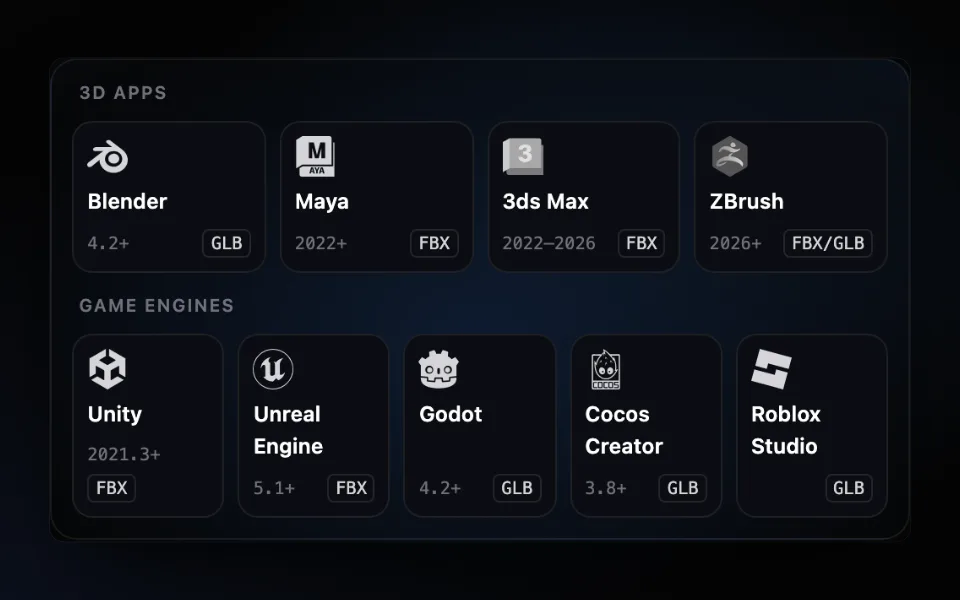
Auto-rig plugins for nine 3D apps and game engines: Blender, Maya, Unity, Unreal and more
One AFK AI plugin for each of nine apps. Select a model, click Rig, and about a minute later it's back in your scene or project, rigged and animated.