GuidesHow-to5 min read
Mixamo for VRChat: Rig your avatar, add Mixamo animations and upload it
Rig your avatar with fingers, set it up in Unity with the VRChat SDK, upload it, then add Mixamo dances, emotes and poses.
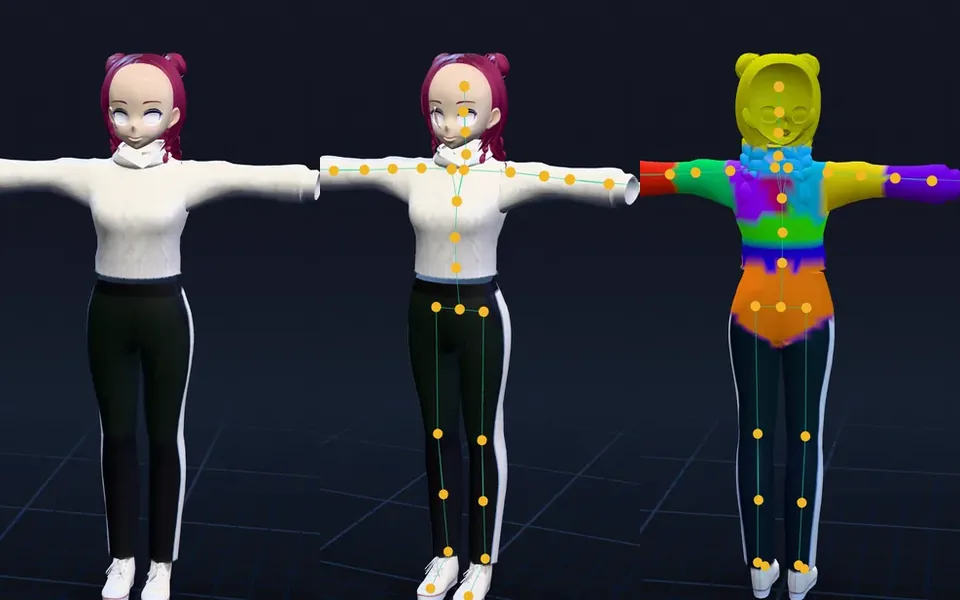
Standard Skeleton65 bones
Every finger
3 Chain Fingers49 bones
Ring moves middle and pinky
2 Chain Fingers41 bones
One chain moves four fingers
No Fingers25 bones
The hand moves as one piece
Mixamo is one of the most common ways to rig a VRChat avatar. It's free, it takes a few minutes, and Unity reads its skeleton as a Humanoid without any fuss. What it doesn't do is everything VRChat-specific: lip sync, eye movement, and getting animations into your in-game menu. This guide covers the whole path.
What you need
| What | Details |
|---|---|
| A model | One humanoid character, as FBX or OBJ, in a T-pose with the fingers spread |
| Mixamo | Free with an Adobe ID |
| Unity | 2022.3.22f1, the version VRChat uses. Don't upgrade the project to Unity 6. |
| VRChat Creator Companion | To make the project and add the Avatars SDK (3.10.6 at the time of writing) |
| A VRChat account | At the New User trust rank or above to upload. Visitors can only Build & Test. |
1. Rig it in Mixamo, with fingers
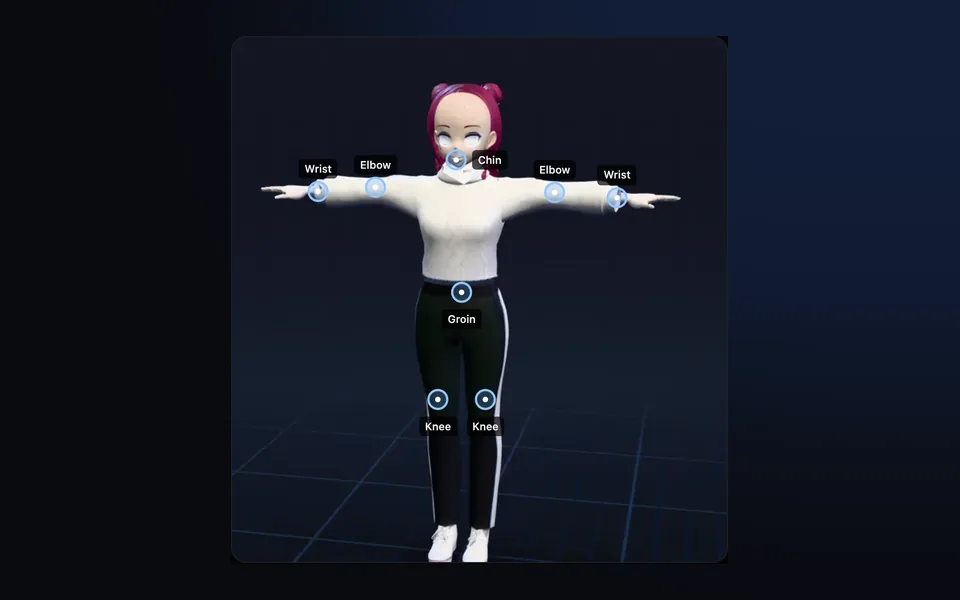
Upload the model on mixamo.com, place the eight markers (chin, wrists, elbows, knees, groin), and in Skeleton LOD pick Standard Skeleton (65). That's the one with every finger jointed. Our step-by-step Mixamo guide covers the upload in detail.
Download it as FBX for Unity, With Skin, in a T-pose.
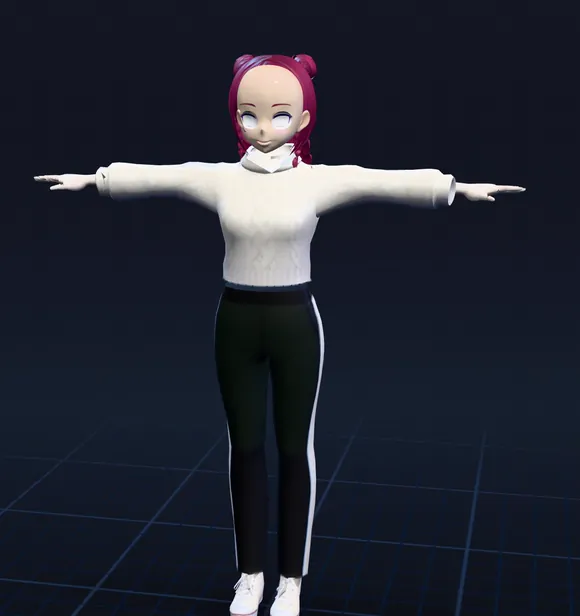 ChinWristWristElbowElbowGroinKneeKnee
2. Set it up in Unity
- Make a new Avatar project in the Creator Companion and open it.
- Drag the FBX into the Project window. In the Inspector's Rig tab, set Animation Type to Humanoid, Avatar Definition to Create From This Model, and click Apply.
- Click Configure. Every bone slot should be green. VRChat needs a Neck and a Chest; Mixamo's Spine, Spine1 and Spine2 usually become Spine, Chest and Upper Chest. If Unity says "Character not in T-Pose", use Pose, Enforce T-Pose.
- In the Materials tab, extract the textures and materials so you can edit them.
3. Add the Avatar Descriptor
Drag the model into the scene and add a VRC Avatar Descriptor component.
- View Position
- Move it between the eyes.
- Lip Sync
- Mixamo doesn't add mouth shapes. If your model has viseme blend shapes, use Viseme Blend Shape. Mixamo's skeleton has no jaw bone, so Jaw Flap Bone isn't an option.
- Eye Look
- Needs eye bones or blink shapes your model brings with it; a rig from Mixamo's Auto-Rigger usually has neither, so leave it off.
4. Build and upload
Open VRChat SDK, Show Control Panel, sign in, and go to Builder. Fix anything the validations list, then Build & Publish. For a PC avatar to rank Good, stay under 70,000 triangles. Quest and phones need a separate build, uploaded to the same avatar, and are far stricter: about 10,000 triangles for Good.
5. Add Mixamo dances, emotes and poses
Get the animation ready
- On Mixamo, with your avatar loaded, pick an animation. For a dance that wanders, tick In Place.
- Download FBX for Unity, Without Skin, 30 frames per second.
- In Unity, select the FBX. Rig tab: Humanoid, and Avatar Definition: Copy From Other Avatar, pointing at your avatar.
- Animation tab: tick Loop Time for anything that loops, and Bake Into Pose for the root's rotation and position so the avatar doesn't drift.
- Select the clip inside the FBX and press Ctrl+D to duplicate it. The copy is the one you can edit and use.
Put it in the Action layer
Emotes and dances live in the Action layer, which sits at zero weight until something raises it.
- Copy vrc_AvatarV3ActionLayer from Packages, com.vrchat.avatars, Samples, AV3 Demo Assets, Animation, Controllers, and assign the copy to the Descriptor's Action slot.
- Open it and drop your clip into one of the emote states, in place of the sample animation.
- Those states already raise the layer and hand the body to the animation (Playable Layer Control and Tracking Control). If you build your own state, add both.
- The built-in VRCEmote parameter (1 to 16) picks the emote. In an Expressions Menu, add a Button that sets VRCEmote to your emote's number.
Custom poses and AFK
A pose is just an animation one frame long, held. Make a single-keyframe clip of the pose (from a Mixamo animation's frame, or posed by hand) and play it from the Action layer like an emote. For an AFK pose, drive a state from the built-in AFK parameter.
If you'd rather not build layers, GoGo Loco (install it through the Creator Companion, with VRCFury or Modular Avatar) adds sitting, lying, poses, AFK and height adjustment in one package.
Fixes
| Problem | Fix |
|---|---|
| Fingers don't move in game | Re-rig with the Standard Skeleton and the fingers spread apart; check the hands in Configure |
| "Character not in T-Pose" | Configure, Pose, Enforce T-Pose |
| The emote never plays | The Action layer stays at zero unless a state raises it with Playable Layer Control |
| The avatar slides or floats during a dance | Bake Into Pose for the root, or In Place on Mixamo |
| Arms go through the body | Raise Character Arm-Space on Mixamo before downloading |
| Others see a fallback on Quest | Make an Android build under the mobile limits and upload it to the same avatar |
Questions
Does Mixamo map fingers for VRChat?
Yes, if you pick Standard Skeleton (65) and the fingers are apart in your mesh. Unity then maps all five fingers on each hand. The 3-chain and 2-chain options leave some finger slots empty, and No Fingers gives none. VRChat doesn't require finger bones, but without them your hand gestures won't show.
How do I import a Mixamo character into VRChat?
Download it from Mixamo as FBX for Unity, With Skin. In a Creator Companion avatar project, import the FBX, set the Rig to Humanoid, add a VRC Avatar Descriptor, set the view position, and Build & Publish from the VRChat SDK panel.
How do I add Mixamo animations to my VRChat avatar?
Download the animation Without Skin, set its Rig to Humanoid with Copy From Other Avatar, duplicate the clip, and put it in an emote state of a copy of vrc_AvatarV3ActionLayer. Add a menu button that sets VRCEmote to that emote.
How do I convert a Mixamo animation for VRChat?
There's nothing to convert. Set the animation FBX to Humanoid in Unity and it plays on any humanoid avatar, including ones not rigged by Mixamo.
How do I make custom VRChat poses with Mixamo?
Take the frame you want from a Mixamo animation as a one-frame clip and hold it in the Action layer, like an emote. GoGo Loco is a ready-made alternative for sitting, lying and AFK poses.
Can I upload a VRChat avatar made with Mixamo?
Yes. Mixamo rigs work as Humanoid avatars. You need a VRChat account at New User rank or above to upload; Visitors can test locally with Build & Test.
Is there a way to rig a model for VRChat besides Mixamo?
Yes: Blender's Rigify, AccuRIG, Auto-Rig Pro, or an AI rigger like afk.ai, which also rigs creatures. See how to rig a VRChat avatar without Mixamo.
Rig and animate your model
An AI rigs it in your browser, then hundreds of animations play on it. Download one GLB for any engine.
More guides
Guide
How to rig a VRChat avatar without Mixamo
Four ways to rig an avatar without Mixamo, and the whole path from a model to a Humanoid avatar in Unity, fingers included.
How-to
Maximo animation: how to use Mixamo, step by step
If you searched for Maximo, you want Mixamo: Adobe's free auto-rigger and animation library. Here's how to use it, and how to fix what goes wrong.
How-to
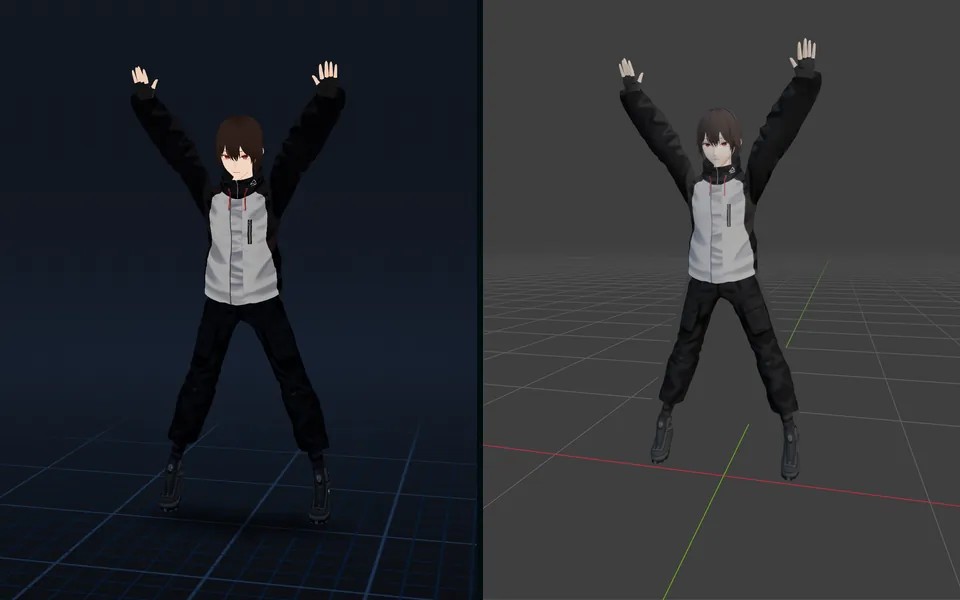
VRM to FBX, GLB to FBX and back: a 3D converter that keeps the animations
Any 3D model to GLB, FBX, USDZ, OBJ or STL in your browser, with its skeleton, skin weights, every keyframe and its face shapes kept.